Transfer to Accounting
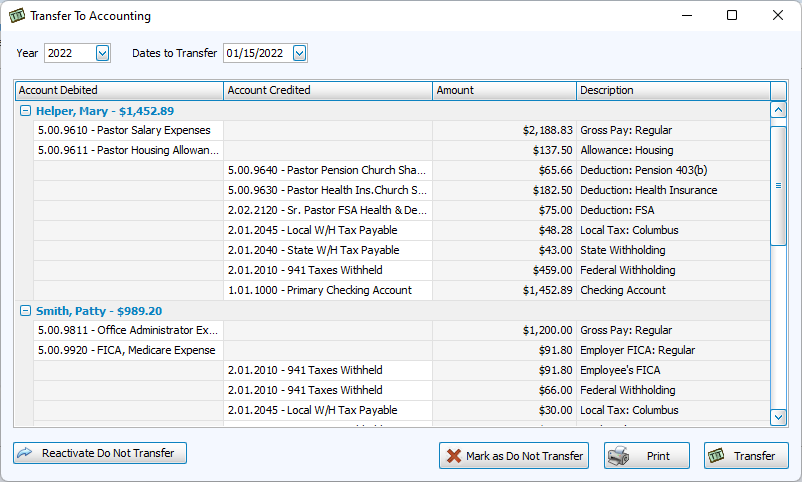
This function allows you to transfer Payroll expenses to your records in the Accounting module. This screen will show each payee and the associated debit and credit accounts for this pay.
If you have not filled out an account or you would like to make a one time change for this payroll, click the dropdown in the account column and select the correct account.
Access Transfer to Accounting
To access from the Button Bar, go to Special Functions > Transfer to Accounting

Accounts
In order to complete account links in Data Setup or Transfer to Accounting, you will need the appropriate accounts created in the Accounting module. The size and specificity of your Chart of Accounts will determine how many accounts are relevant to Payroll entries, but the basic accounts are outlined below.
Keep in mind that you can use an account for multiple employees. For example, you might have expense accounts for all salaries or for specific departments (Pastors, Administrative, Music Department). You do not need to create a separate payroll expense account for each employee.
Assets - 1
The asset account that employees are paid from can be entered on their Employees & Contractors File, under the Pay Rates & Hours tab. You can set a default checking account in Payroll Settings.
Example: 1.01.1000 - Primary Checking Account
Liabilities - 2
Liability accounts hold tax withholdings and often deductions that are paid for entirely by the employee.
Examples: 2.01.2010 - 941 Taxes, 2.01.2040 - State Withholding, 2.01.2110 - Disability Insurance
Expenses - 5
Expense accounts can designate payroll costs, as well as allowances and benefits that are paid for by both the church and employee.
Examples: 5.00.9610 - Pastor Salary Expenses, 5.00.9640 - Pastor Pension Church Share
Transfer Payroll Data to Accounting
-
At the end of the Calculate Payroll process, you can either check the option to go into the Transfer to Accounting screen after posting or you can post it and later go to Special Functions > Transfer to Accounting.
-
Review the transfer information, including the Dates to Transfer and Accounts Debited and Credited.
-
Click
 .
. -
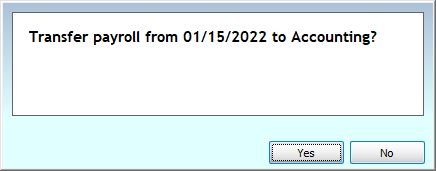
Confirm your selection.
-
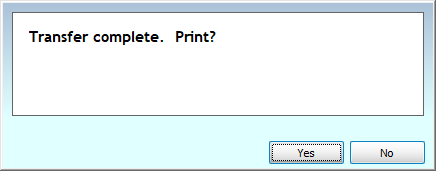
Choose whether to print an Accounting Transfer Audit Report.
Do Not Transfer
-
If you do not want to transfer a date to Accounting, click
 and confirm.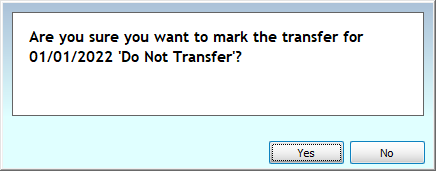
-
Click
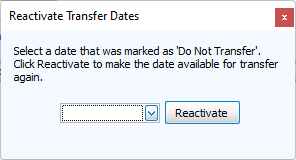
 and select the date to restore it back into available transfers.